NeetoDesk Changelog


assign-to-the-first-responder-in-the-group.png

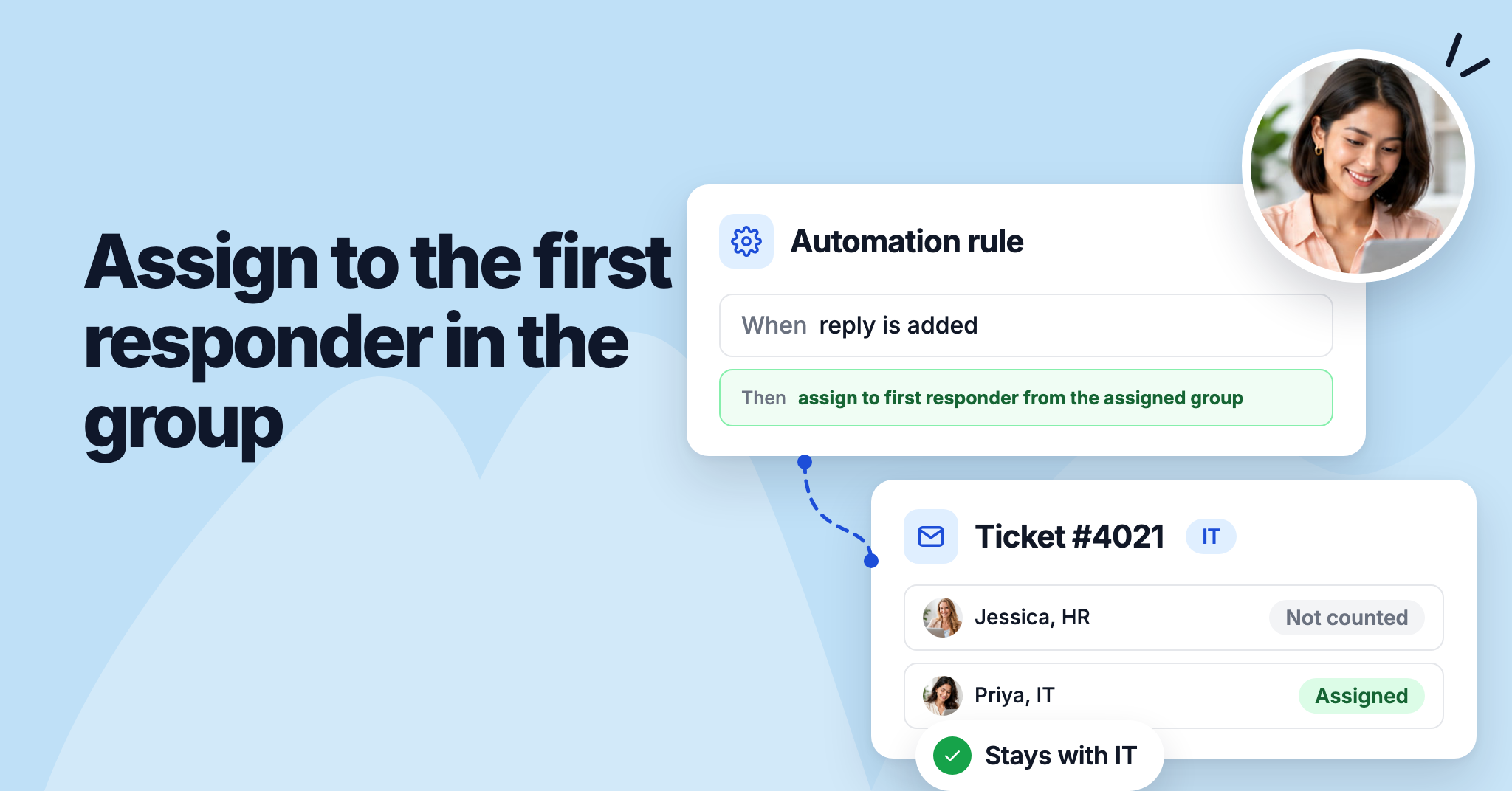
You can now keep a ticket with the group it was routed to while it waits for a reply. Two new automation actions, assign to first responder from the assigned group and assign to last responder from the assigned group, count only replies from team members in the ticket's group.

When someone outside the group replies first, the ticket stays unassigned in the group's queue instead of moving to them and losing its group. A ticket with no group is assigned to whoever replies first, as before.

To learn more, read our help article.

individual-customer-satisfaction-responses.png

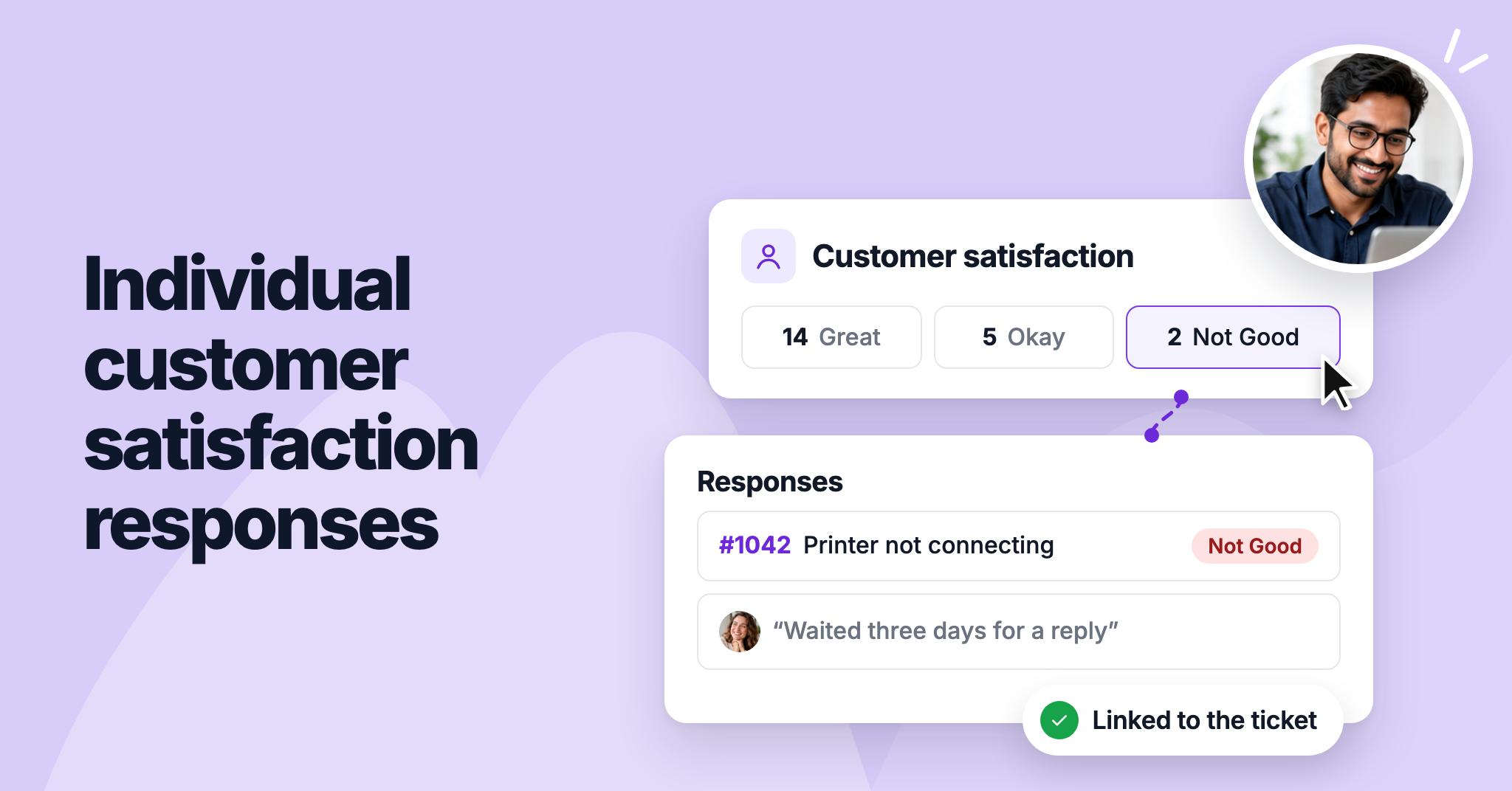
You can now see which ticket each customer satisfaction rating came from. When a customer gives a low rating, you can open that ticket straight from the report and read the conversation to find out what went wrong.

The customer satisfaction report now lists every response below the rating cards, with the ticket number, subject, customer, rating, comment, and the date they responded. Click a rating card to see only the responses with that rating.

To learn more, read our help article.

Follow and unfollow tickets

New feature Sagar Anadkat
follow-and-unfollow-tickets.png

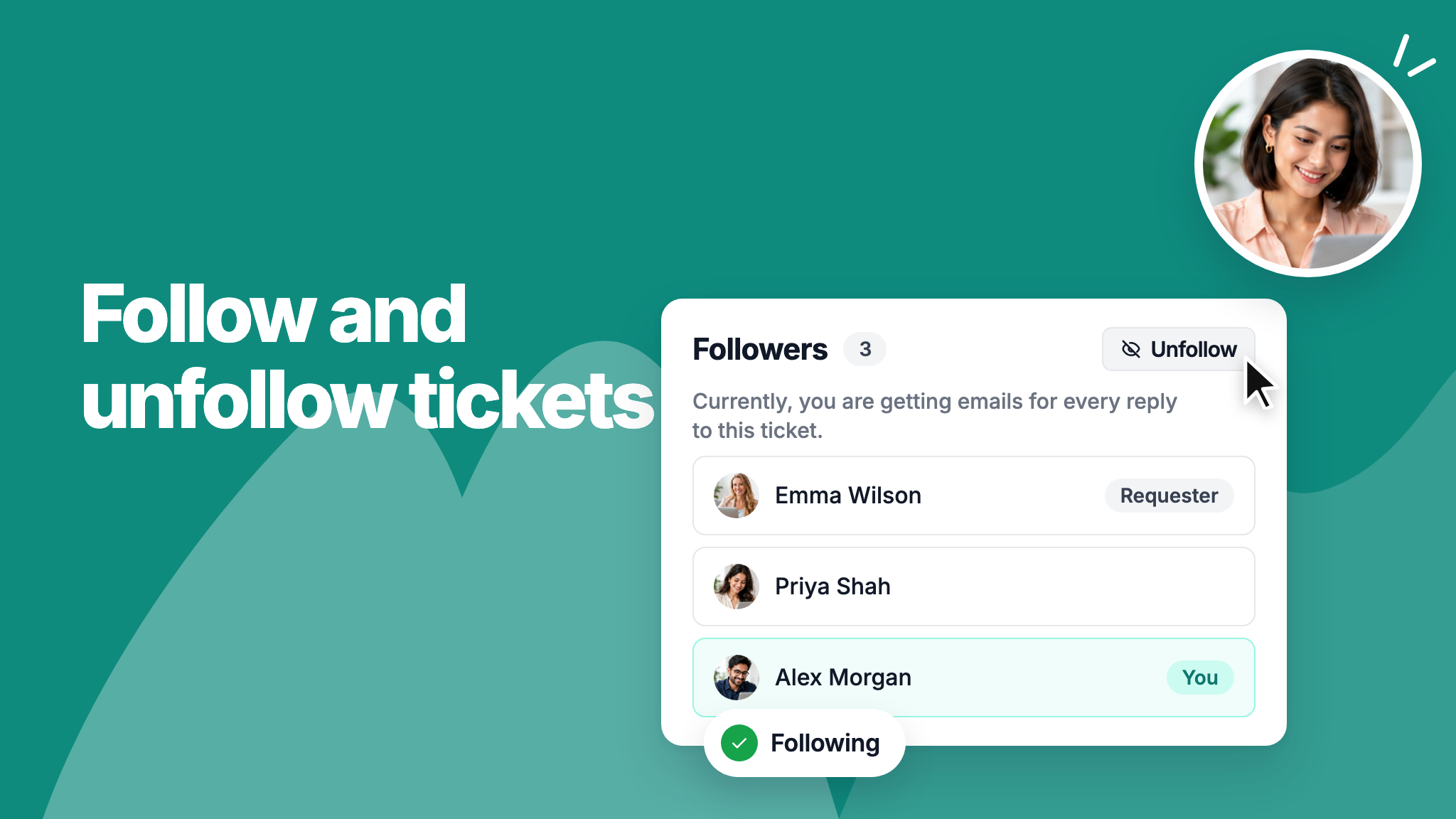
You can now follow a ticket yourself from the Followers section in the ticket's sidebar. You'll get an email for every reply, even on tickets that aren't assigned to you. When you no longer need those emails, click Unfollow.

The Followers section also shows whether you're getting emails for the ticket, so you can tell at a glance if you'll hear about new replies.

To learn more, read our help article.

Ticket status in search results

Improvement Sagar Anadkat
ticket-status-in-search-results.png

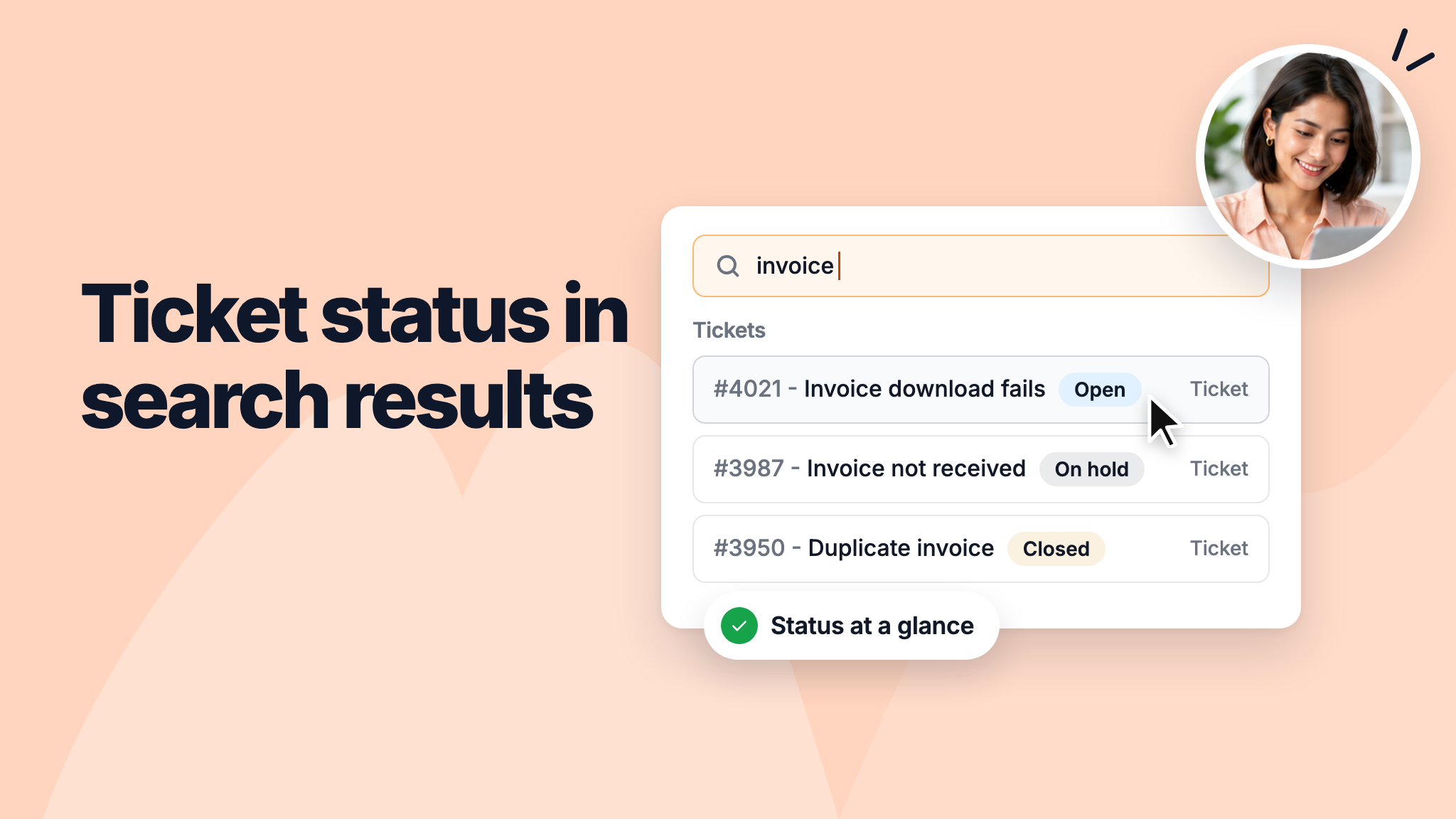
You can now see each ticket's status in search results. When several tickets have similar subjects, you can tell which one is still open and which is already closed before opening any of them.

The status appears in a tag beside the ticket number and subject. It uses the team member label and color you set for that status, so custom statuses look the same as they do on the ticket.

To learn more, read our help article.

IP restriction

Sagar Anadkat
desk-changelog-ip-restriction_DTXaoNsJD.png

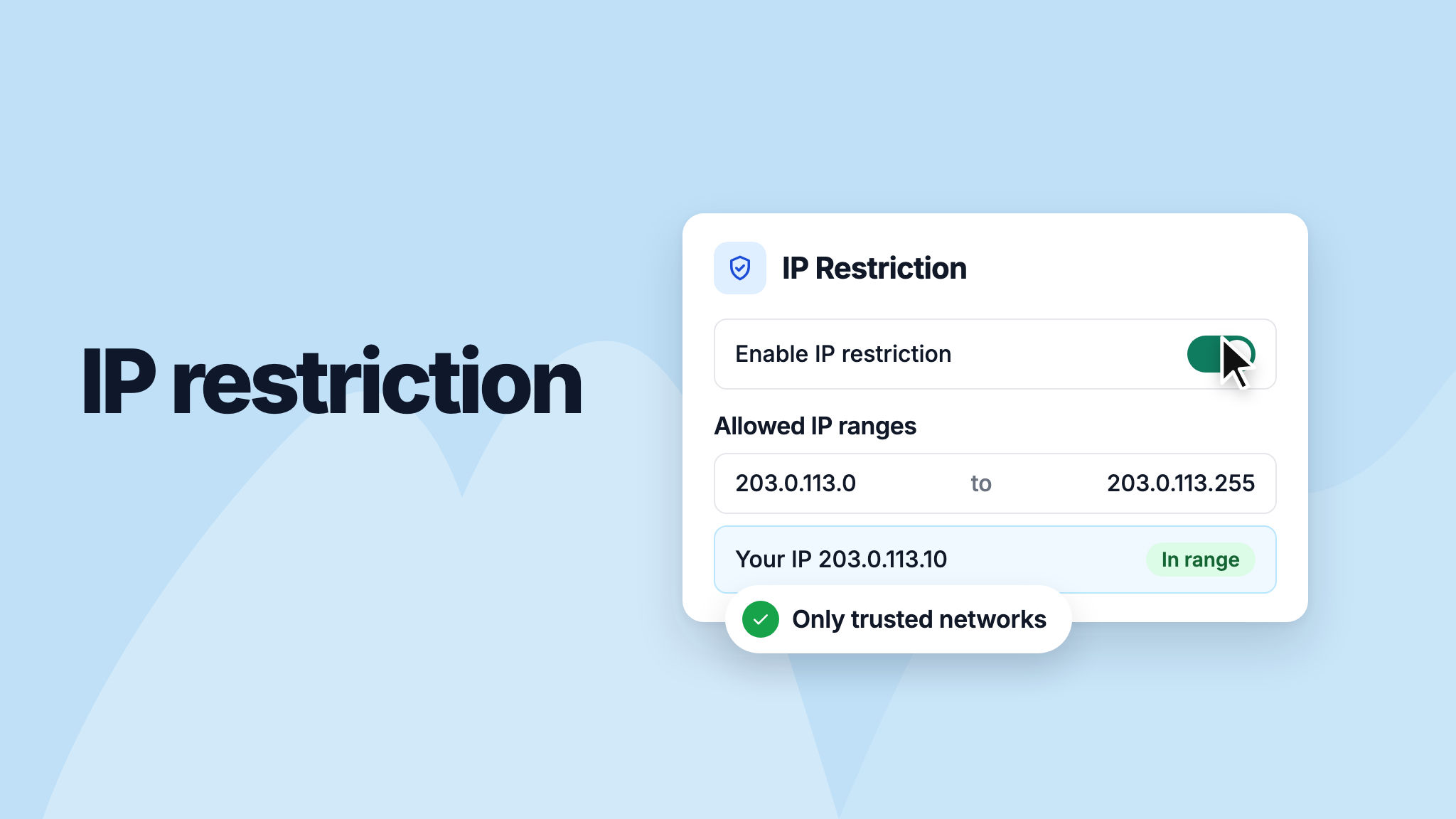
You can now limit access to your NeetoDesk workspace to specific IP addresses or IP ranges. Only people on your trusted networks, such as your office network or company VPN, can then view or work with your data.

To set it up, go to Admin Panel > IP Restriction and turn it on. Your current IP address is added to the allowed range automatically, so you don't lock yourself out.

To learn more, read our help article.

desk-changelog-attach-files-to-ticket-updates-and-drafts-through-the-api_VNzxkF_GzI.png

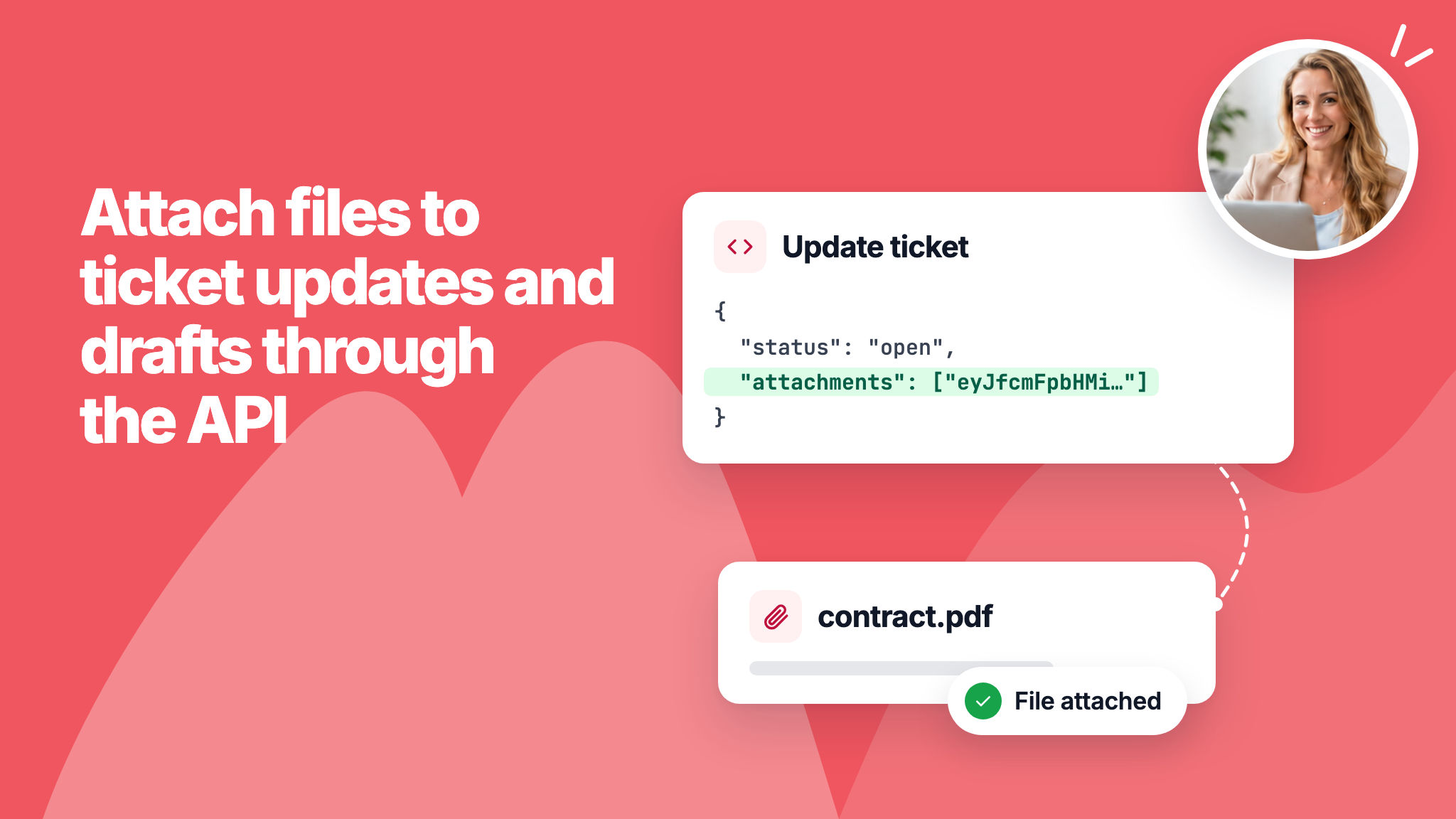
You can now attach files when you update a ticket or save a draft reply through the API, in addition to creating tickets and comments. For larger files, the new Reserve an attachment upload call lets you send the file straight to storage.

The NeetoDesk MCP server can attach files too, so your AI assistant can add a file to a ticket, a reply or a draft.

To learn more, read the API documentation.


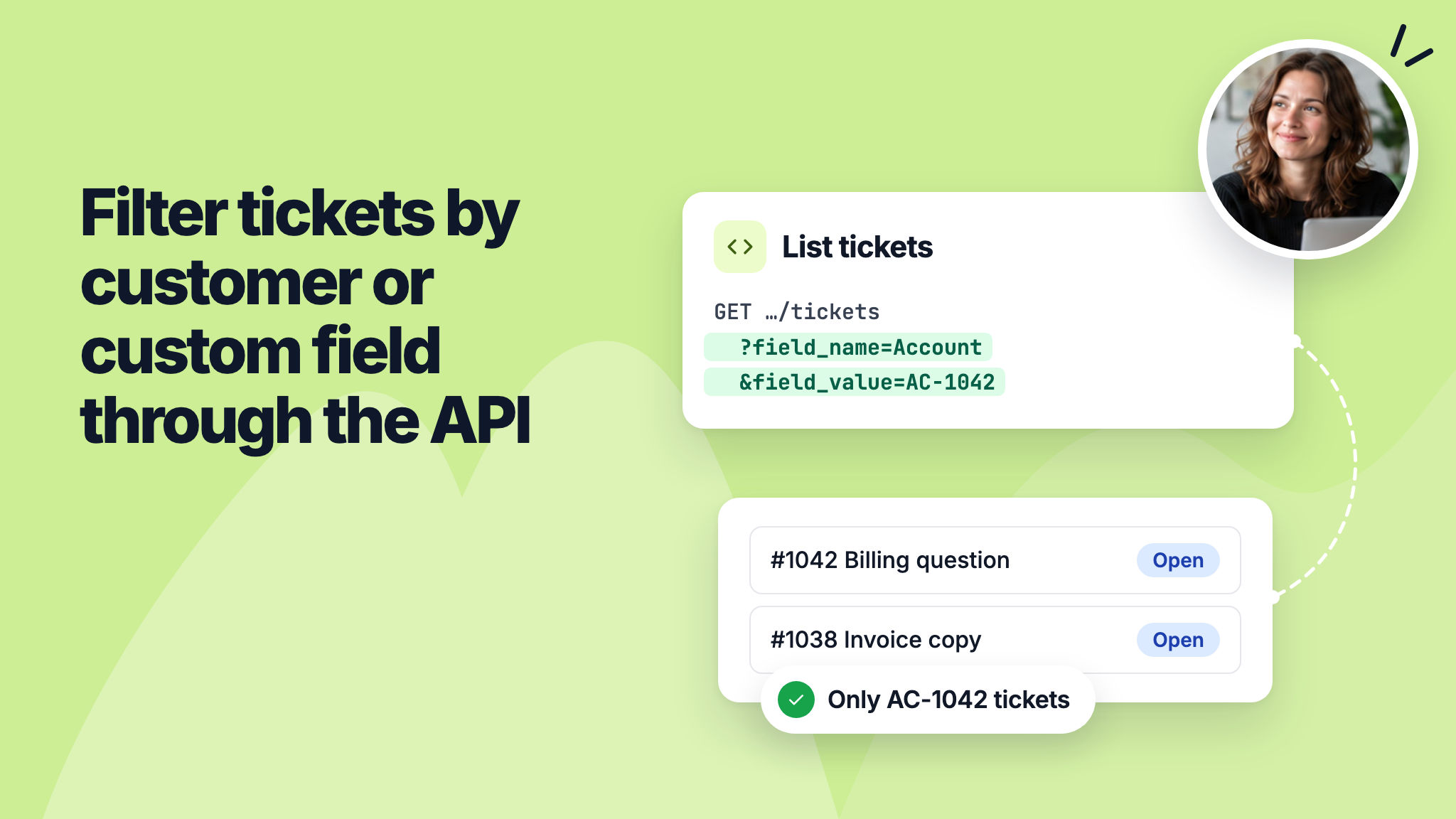
desk-changelog-filter-tickets-by-customer-or-custom-field-through-the-api_t7CaO30mIn.png

You can now use the List tickets API to get only the tickets of one customer, using their email address or customer ID. You can also get only the tickets that have a given value in a custom field.

For example, if you store an account ID in a custom field, you can fetch every ticket for that account without going through all of your tickets.

To learn more, read the API documentation.


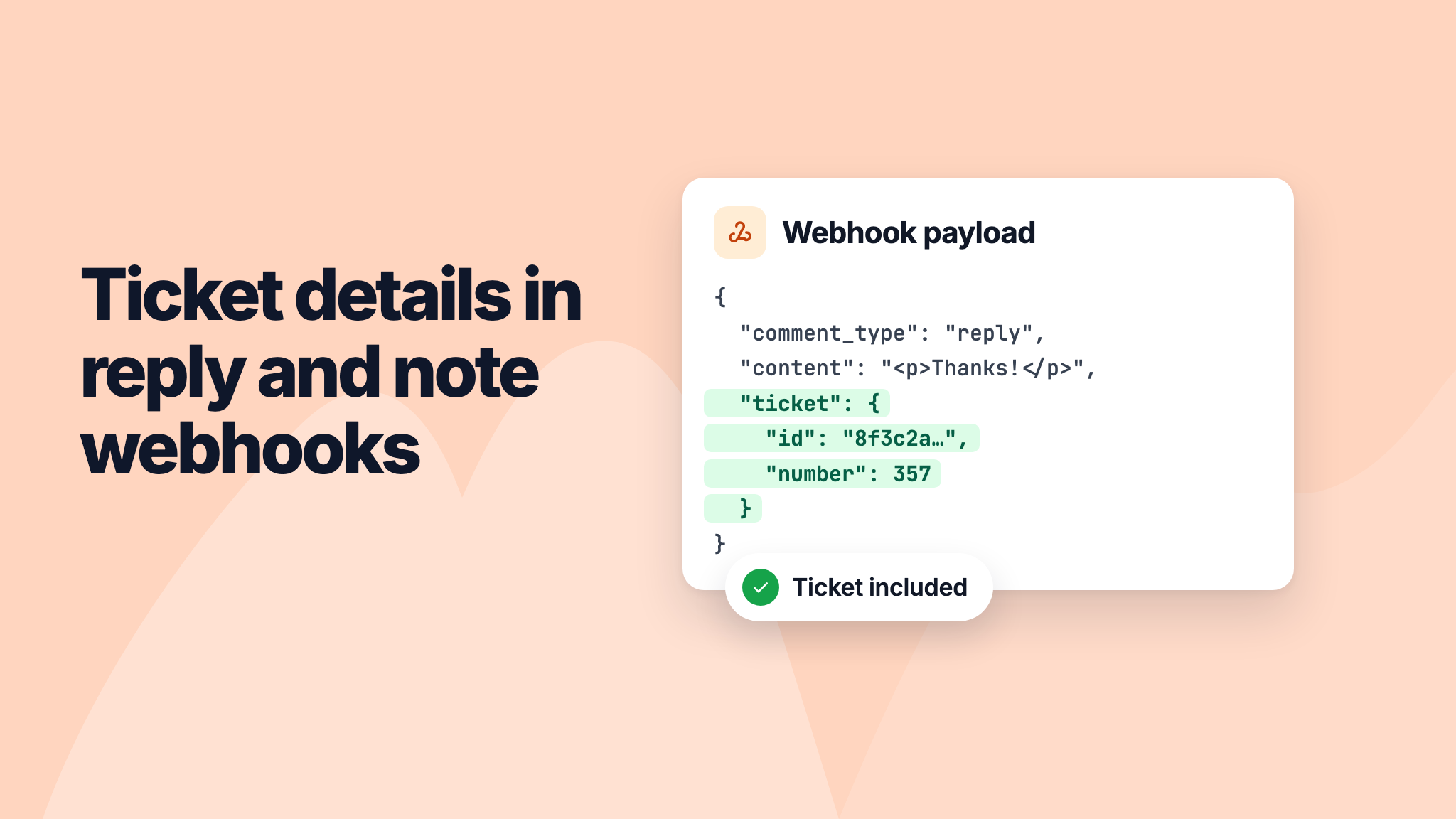
desk-changelog-ticket-details-in-reply-and-note-webhooks_NWppzK3ON.png

Webhook events for new replies and notes now include the ticket's ID and number. Your system can tell which ticket each reply or note belongs to without making another request.

This covers replies from customers, replies from your team, and notes added by your team.

To learn more, read our help article.

neetodesk-changelog-default-ticket-view-teal-v2_mNaUy6uBF.png

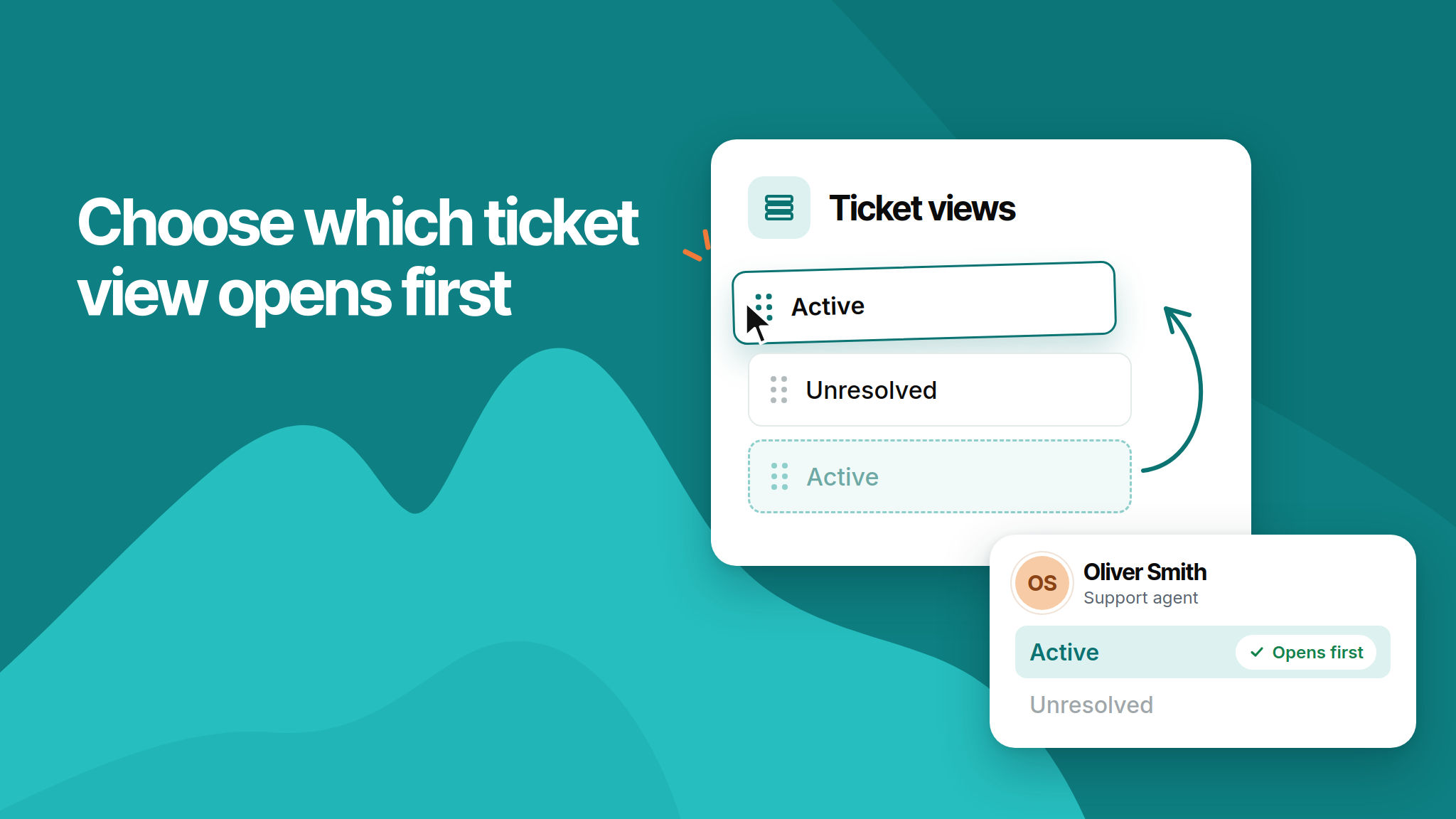
You can now choose which ticket view opens first. When agents sign in or click Tickets, NeetoDesk opens the first view in their sidebar instead of always opening Unresolved.

To change it, reorder your views in Admin Panel > Ticket views. For example, move Active to the top and agents will land on Active. Agents who can't access that view will land on the first view in their own sidebar.

To learn more, read our help article.

image_nv1EwxZYvz.png

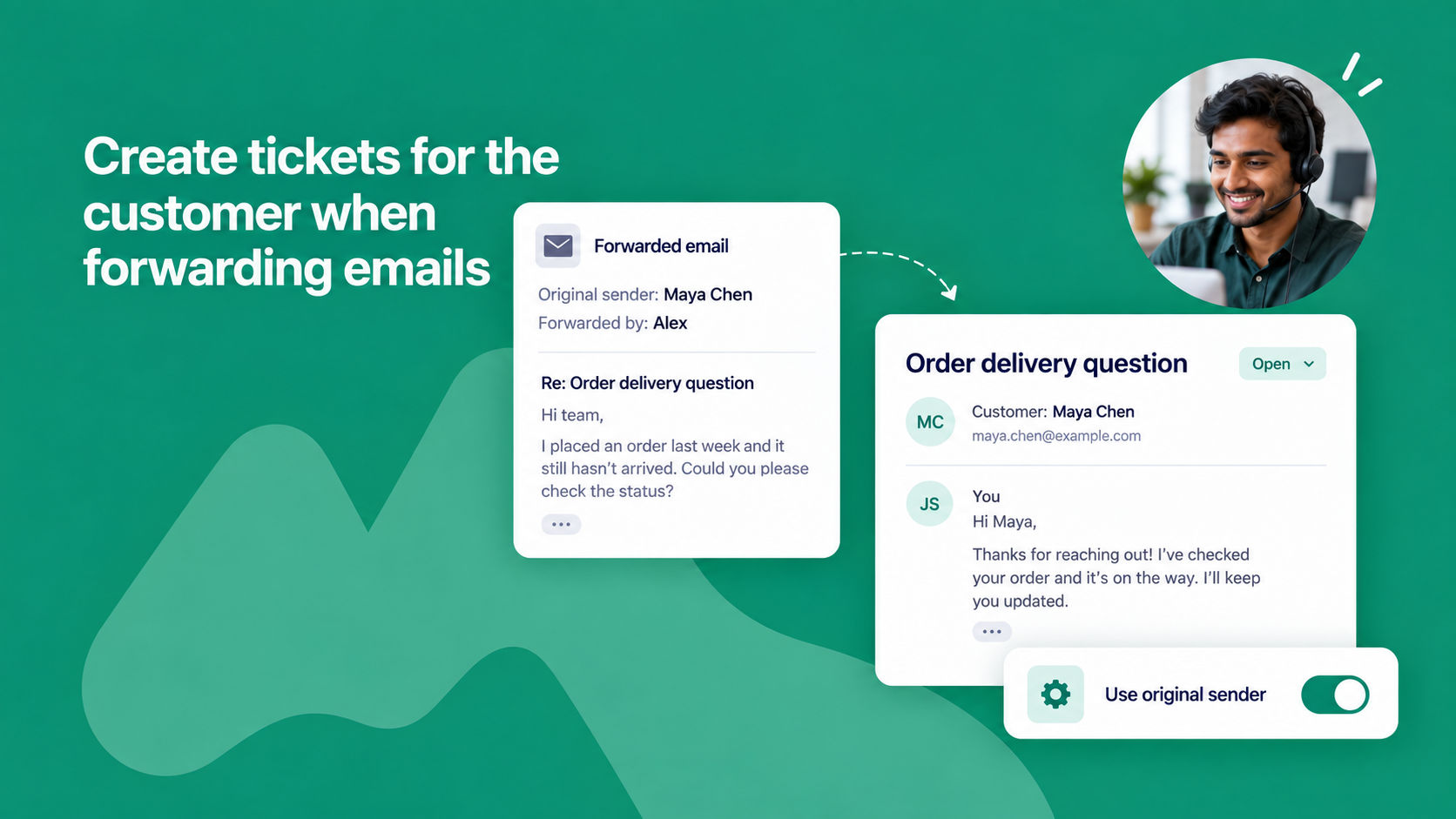
Sometimes customers email team members directly instead of contacting your support address. When a team member forwards that email to NeetoDesk, the ticket should belong to the customer and not the person who forwarded it.

NeetoDesk can now use the original sender’s email address when creating tickets from forwarded emails.

The feature Use original sender as customer for forwarded emails is enabled by default for everyone. Now NeetoDesk identifies the original sender and creates the ticket for that customer.

This keeps customer information accurate and ensures replies go to the right person.

See the help article for details.