NeetoDesk Changelog


More_ways_to_automate_your_workflow_Ch1xd73Gf.png

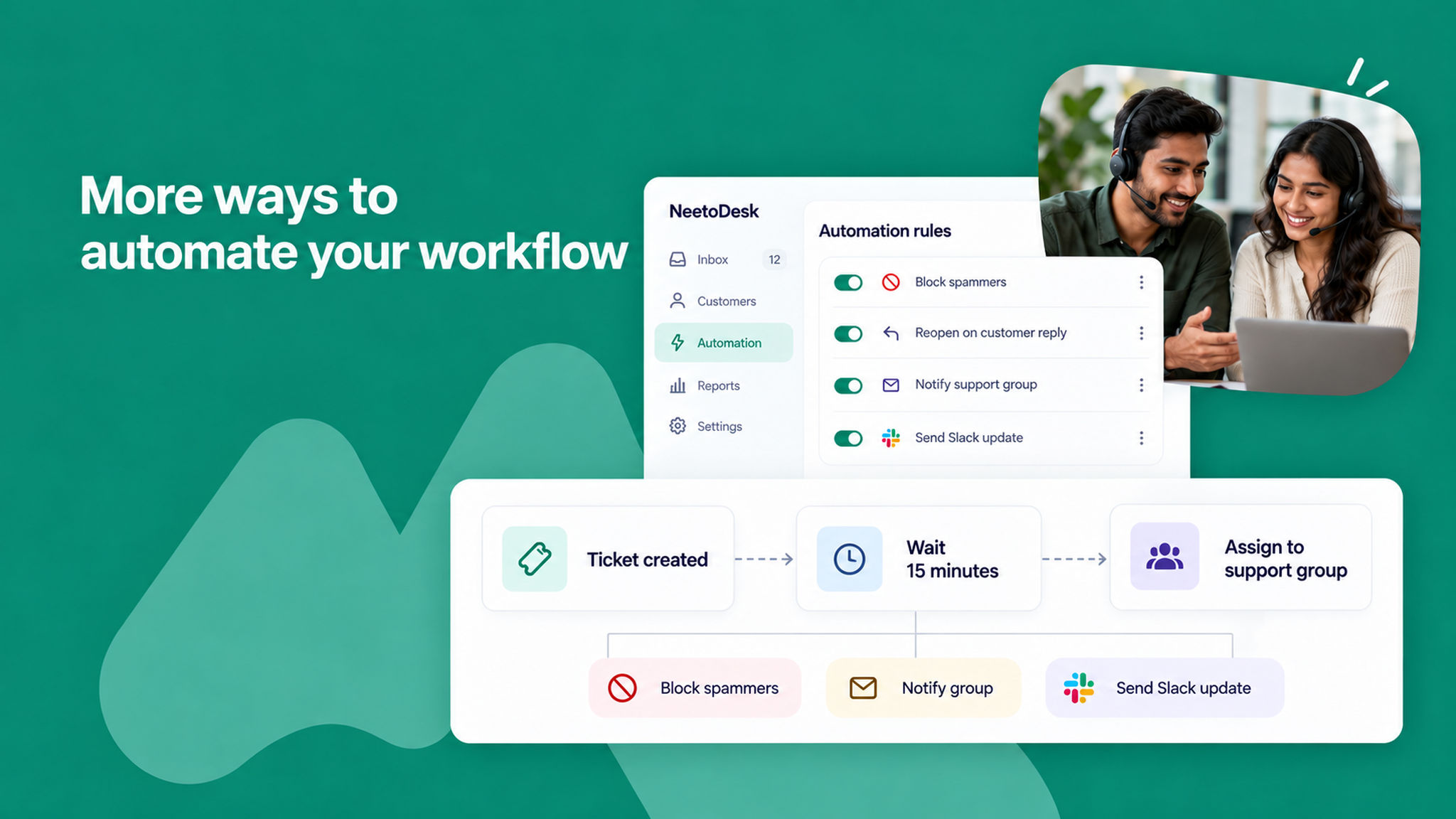
We've added several options to automation rules:

  • Delay actions: choose how long a rule waits before its actions run, instead of running them immediately.

  • Block spammers automatically: a new default rule blocks a customer when their ticket is marked as spam, so their future emails don't reach your inbox.

  • Reopening closed tickets is now a rule: the toggle in ticket settings has moved into the default rule "[Status Update] - Mark as Open when original requester replies". You can now edit the rule or turn it off like any other rule.

  • Email a group and assign to a group: new actions to notify or route tickets to an entire group.

  • Slack notifications set up for you: when you connect Slack, a default rule to post ticket updates is now created automatically.
Customer portal

Kirti Gulati
Customer_portal_R0pLkY8GI.png

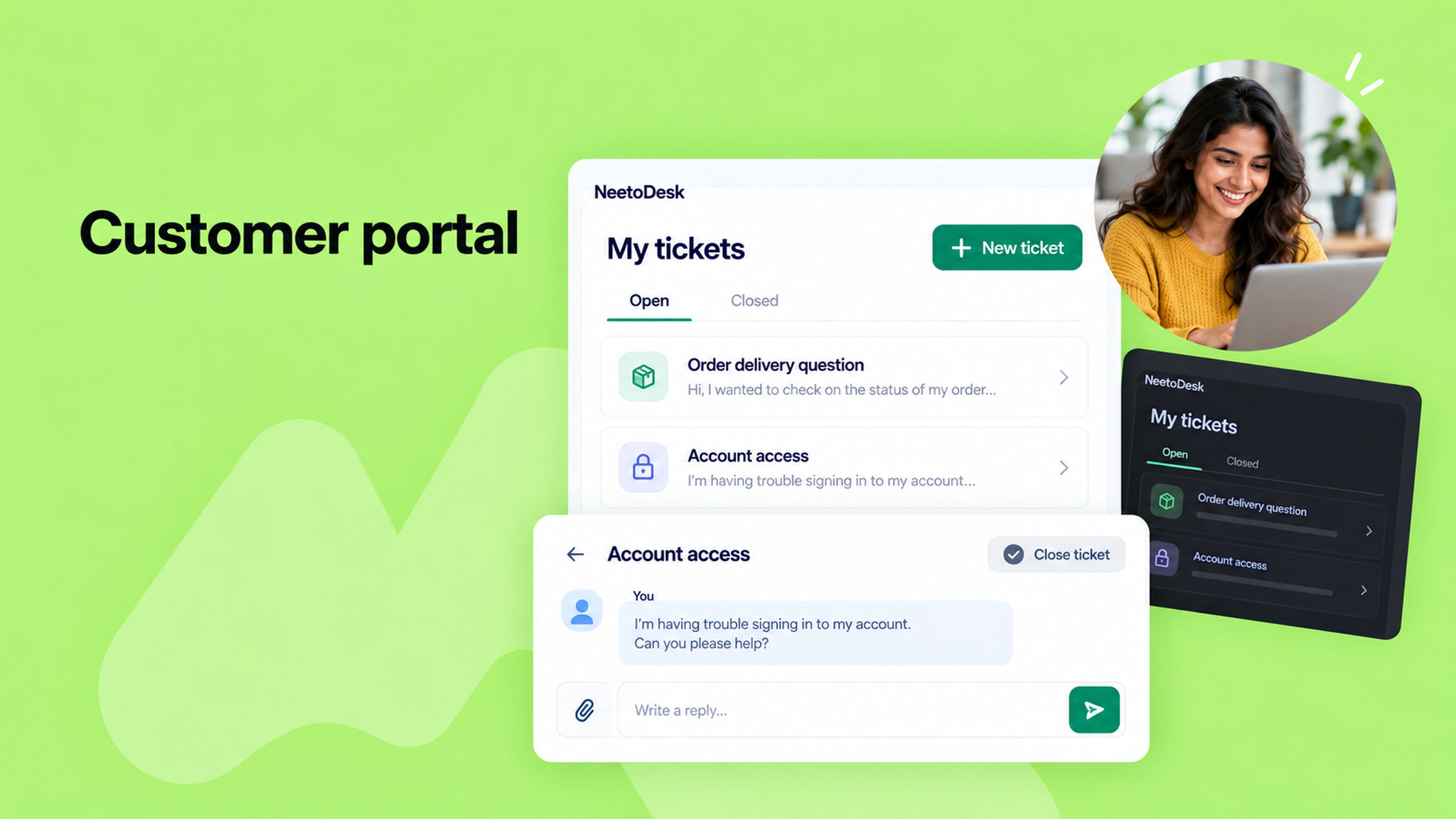
Your customers can now sign in to a customer portal to see all their tickets in one place, without searching through old emails.

In the portal, customers can:

  • See their open and closed tickets separately.

  • Open any ticket to read the full conversation and reply.

  • Close a ticket once their issue is resolved, or reopen it if the problem comes back.

  • Submit a new ticket using your support form.

The "view it on NeetoDesk" link in every reply email opens that ticket in the portal. To sign in, customers enter their email address and the one-time code sent to them. There's no password to create or remember. The portal also supports dark mode.


Account_managers_for_customers_ksejVfcLY.png

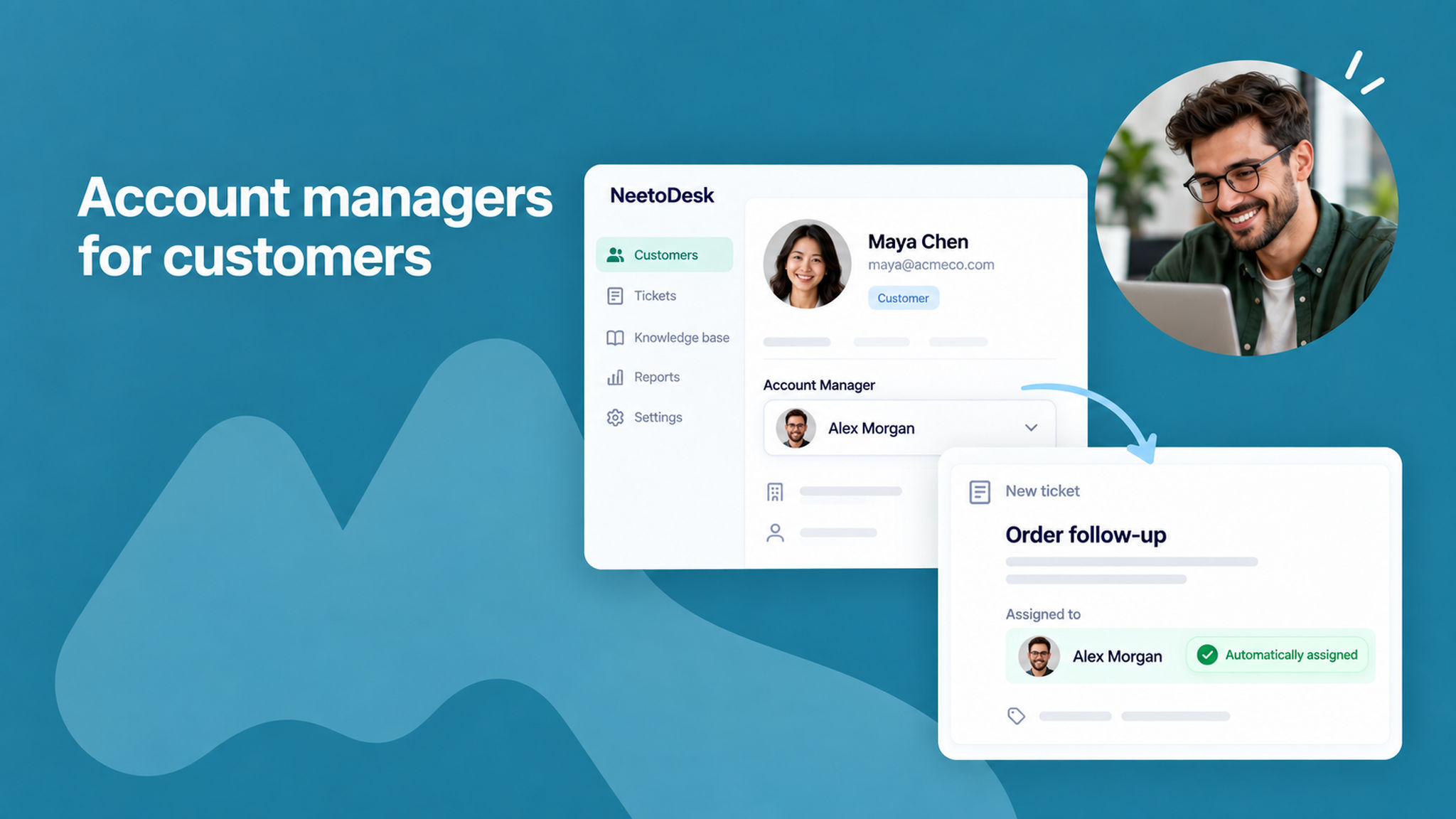
You can now assign a dedicated account manager to each customer. Open a customer and choose a team member in the Account Manager section.

New tickets from that customer are then assigned to their account manager automatically, through the default automation rule "[Auto Assign] - Assign to account manager on ticket creation". If the account manager is unavailable, the ticket stays unassigned.

To know more, read this help article.


Google_Sheets_integration_zXx5GVK6e.png

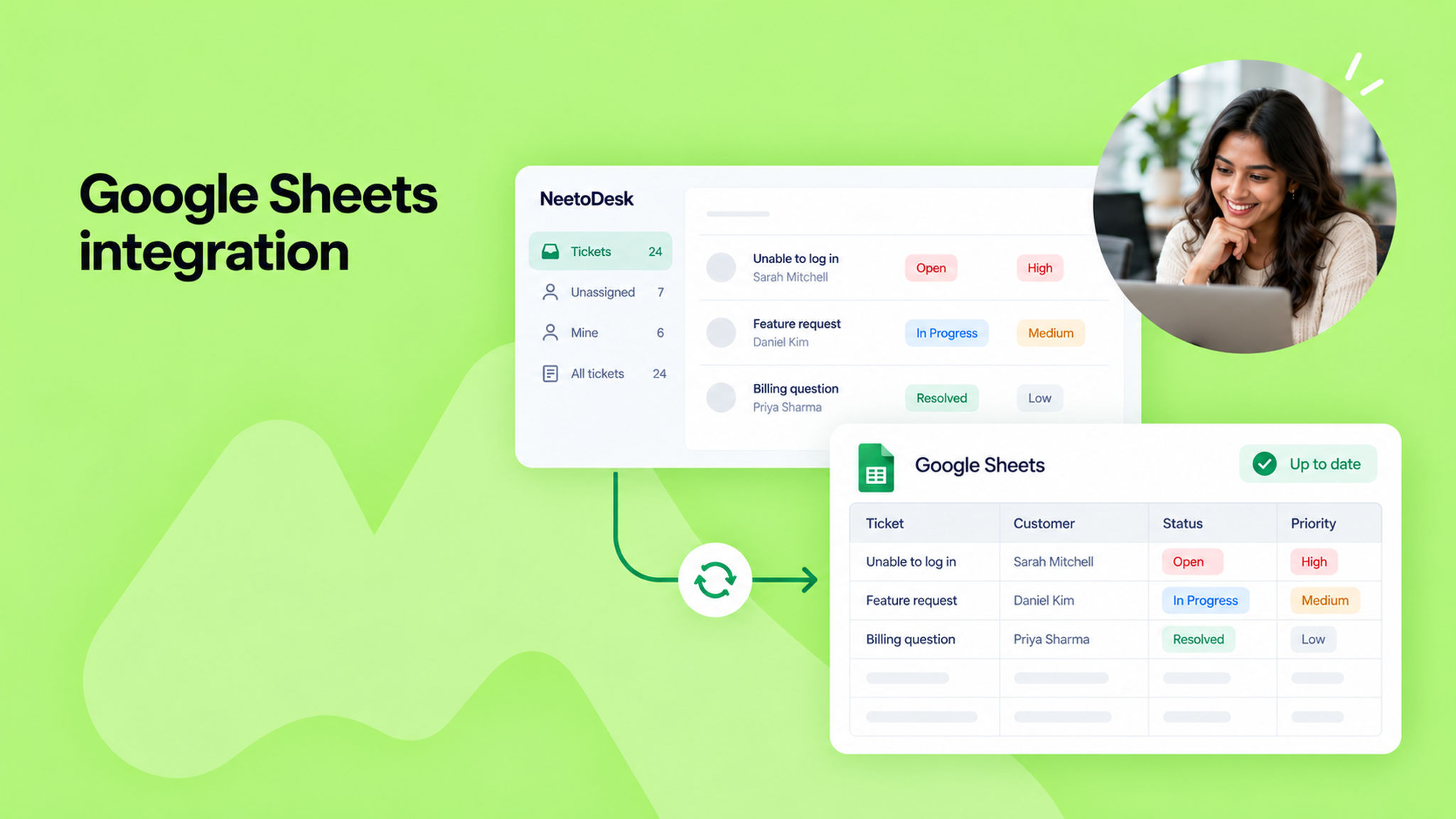
You can now sync your tickets to a Google Sheet for reporting and analysis. Connect your Google account and choose the ticket fields you want. NeetoDesk creates the spreadsheet in your Google Drive and keeps it updated as tickets change.

Go to Admin Panel > Integrations > Google Sheets to connect.

To know more, read this help article.


Custom Priorities

Harshita Singh
Custom_Priorities_-899gdbcrc.png

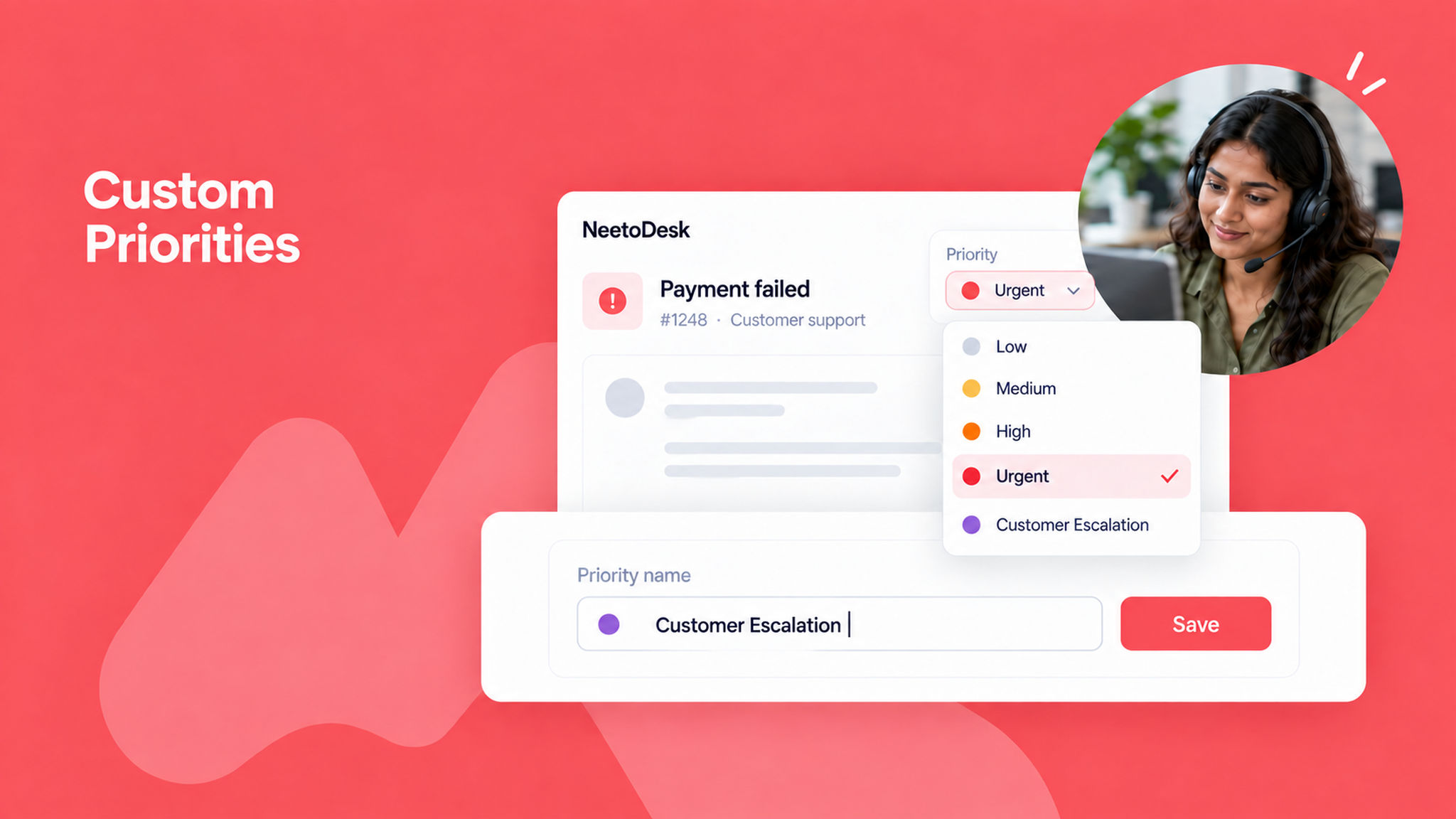
We have added a feature to customize or add priorities, giving you greater flexibility to organize your workflow according to your team’s unique needs.

With this feature, you can edit priority levels like "Low," "Medium," or "High," or add custom ones such as "Urgent" or "Customer Escalation," depending on your team’s requirements.

For example, if your team needs to quickly identify critical issues, you can set a priority called Urgent and assign it accordingly. This will help everyone focus on the most important tasks first and enhance overall efficiency.

To learn more about this feature, read our help article.


Bulk upload customer data

Harshita Singh
Bulk_upload_customer_data_PaFSUZ6UX.png

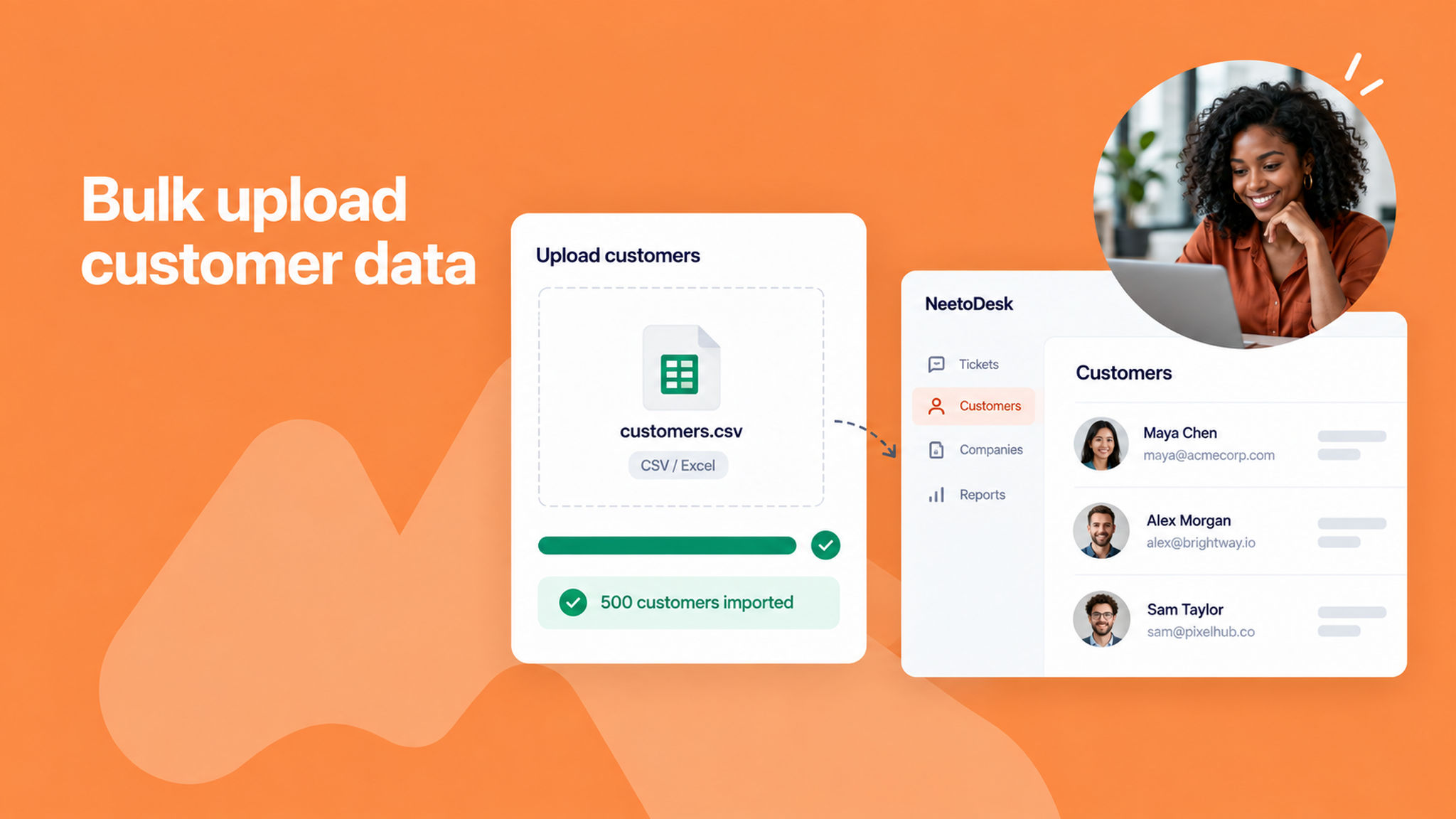
With the NeetoDesk Bulk Upload feature, you can now add multiple customers to your system in one go by uploading a file. No more entering each customer manually.

Whether you're migrating data from another tool or onboarding hundreds of new customers, this feature supports commonly used file formats like CSV and Excel, making the process quick and hassle-free.

For example, if you have a spreadsheet with 500 customer entries, you can upload it directly, and all the data will be processed and added automatically. It’s the easiest way to scale your customer onboarding.

To learn more about this feature, read our help article.