NeetoDesk Changelog


image_KaTwtdVomn.png

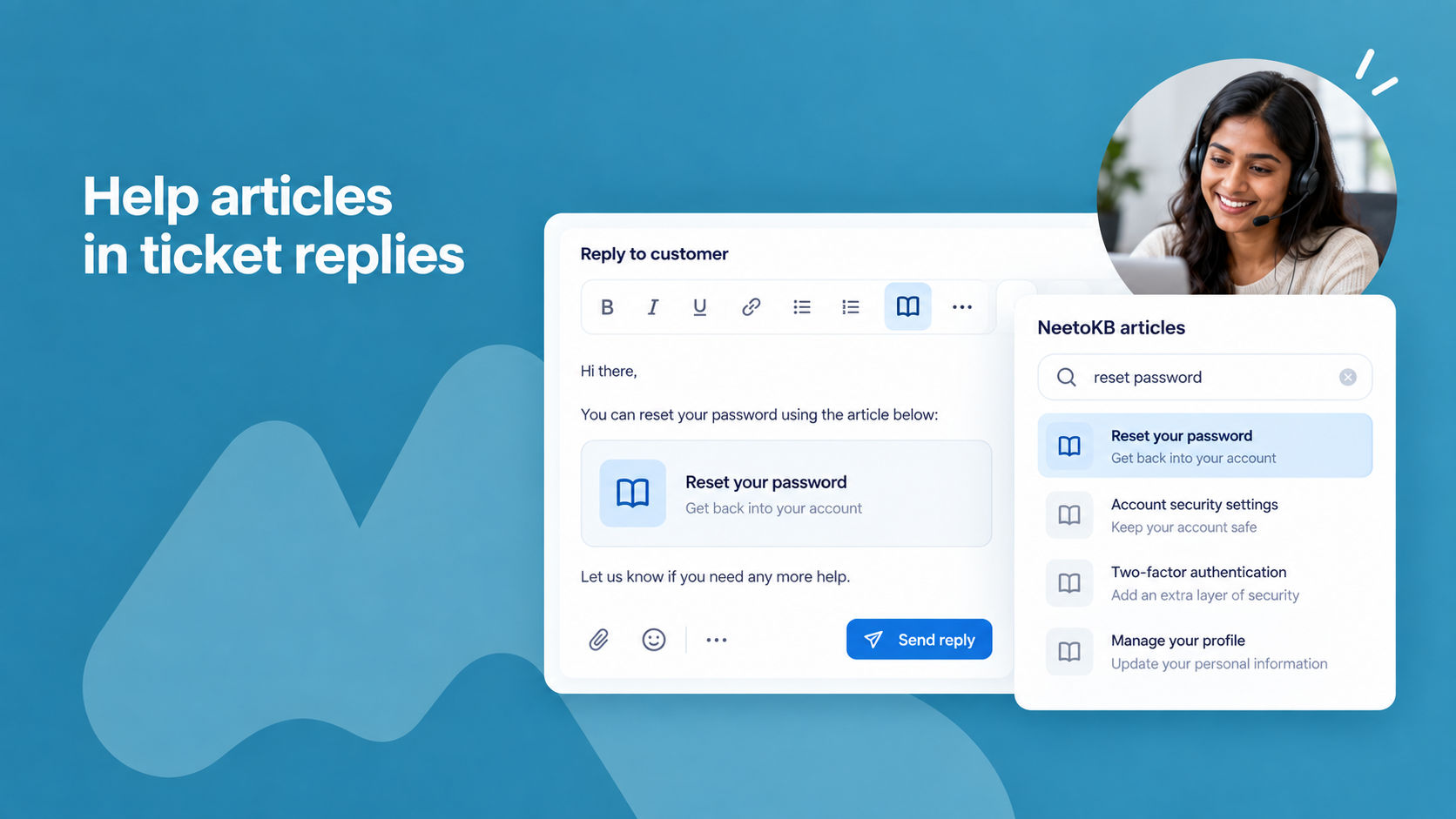
You can now add help articles from your knowledge base (NeetoKB) straight into a ticket reply. While replying, click the NeetoKB article icon in the editor, search for the help article, and insert the right article without leaving the ticket or copying links by hand.

The article's title and a short description are added to your reply as a link that the customer can open, so they get the full answer in one place. There is nothing to connect or set up; this is always available in the reply editor.

To learn more, read our help article.


image_YpANkUuwO.png

We've made several improvements to ticket forms:

  • Full-width builder with separate Build anda tabs.

  • New Share tab: copy the form link, download a QR code, share on Facebook, LinkedIn or X, embed the form on your website, or create a link that opens the form with some answers already filled in.

  • New question types: Address and Opinion scale.

  • Customer name pre-filled on public forms when it is already known.

  • Redesigned form and thank-you page.

To know more, read this help article.


image_IjMEt2-Hy.png

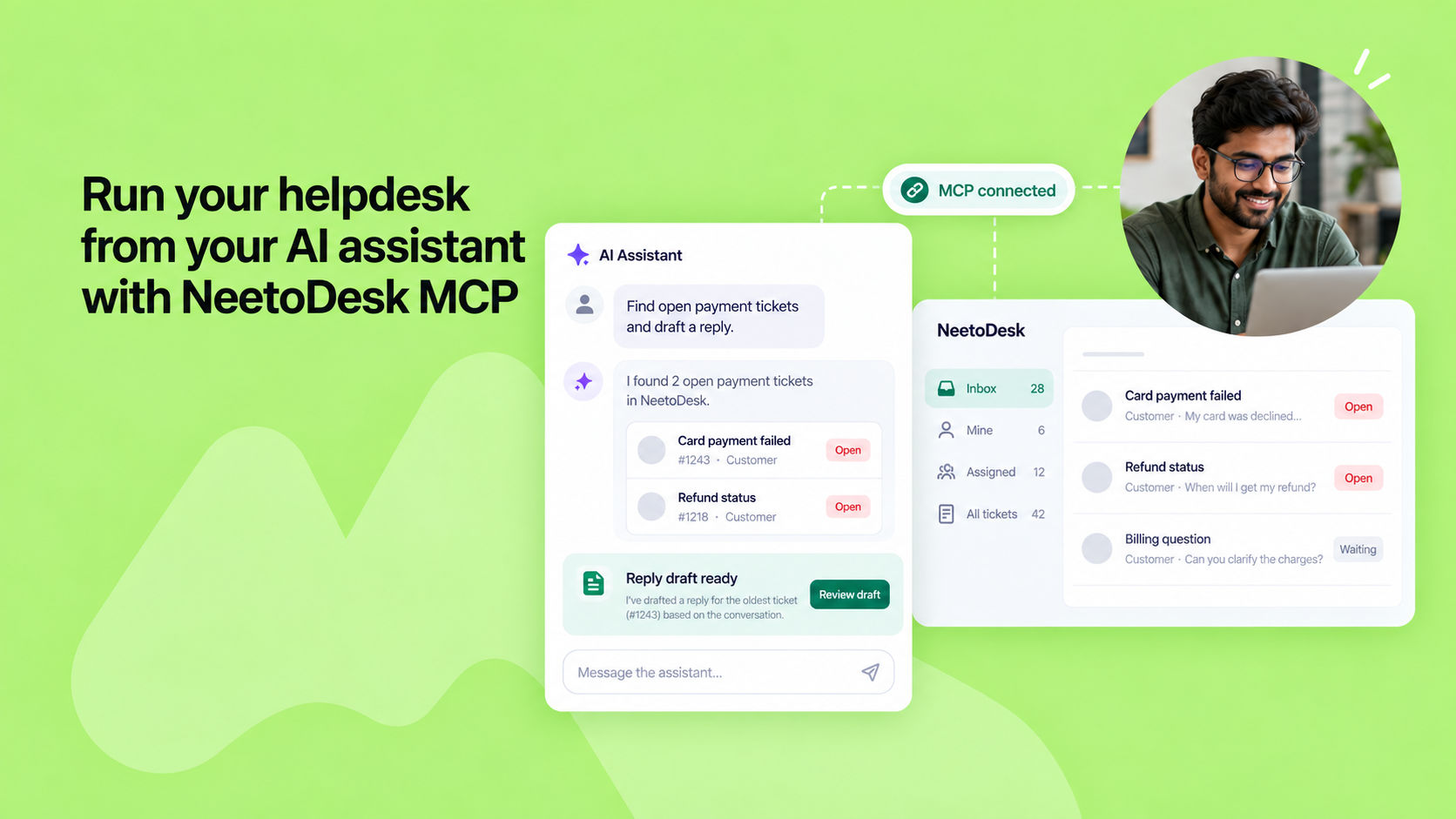
NeetoDesk now works inside the AI assistant you already use. Connect NeetoDesk through MCP (Model Context Protocol), an open standard that links AI assistants to apps.

Then just ask for what you need in plain language: "Show me the open tickets about failed card payments, summarize what each customer wants, and draft a reply on the oldest one."

The assistant finds the tickets, reads the conversations, replies or adds internal notes, saves drafts, updates status and priority, creates tickets, and pulls reports on ticket volume, agent and group performance, and customer satisfaction.

It can also search tickets by subject and by the text of their replies. It's especially useful when the details are already in your chat. Paste a complaint from Slack or a forwarded email thread, and the assistant turns it into a ticket with the customer, subject and description already filled in.

Setup takes a couple of minutes, and NeetoDesk hosts the server, so there's nothing to install or keep updated. It works with Claude, ChatGPT, Claude Code, Codex, Cursor, Gemini CLI, VS Code with GitHub Copilot, Windsurf and Antigravity.

Most assistants sign you in with your NeetoDesk account in the browser. You decide there whether the assistant can only read or can also create, update and delete. It only sees what your role allows. MCP and the NeetoDesk CLI work well together.

Use MCP when you want the assistant to read, decide and act. Use the CLI for scripts, scheduled jobs and bulk work that should run the same way every time. You can have both: run neetodesk setup claude, and your assistant drives the CLI for you.

To know more, read this help article.


image_M8qQSJ2Jb.png

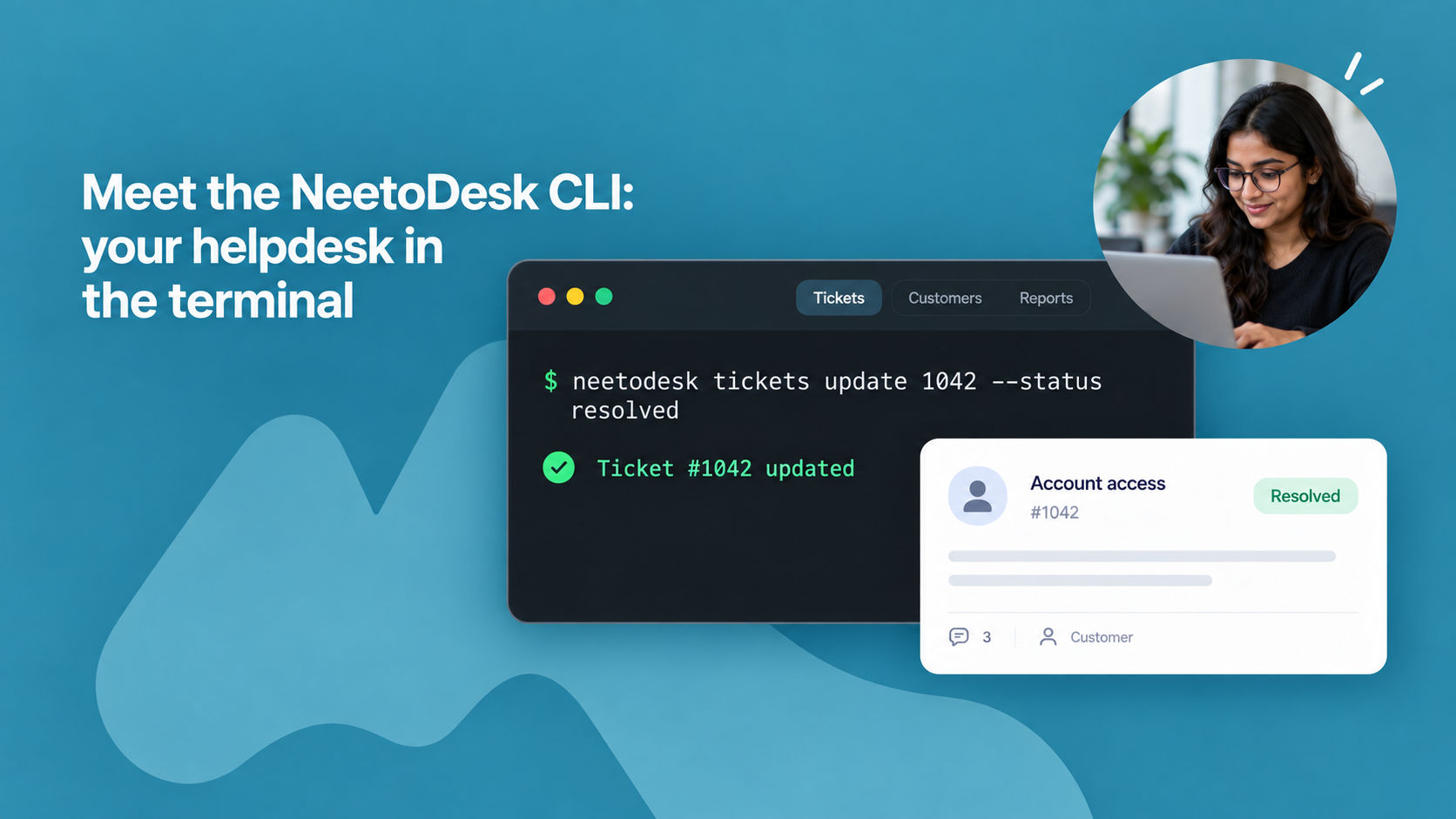
NeetoDesk now has a command-line tool, neetodesk. It gives you tickets, replies, drafts, customers, forms, reports and team members right in your terminal. You can triage a queue, reply to a customer, save a draft or pull a month of agent response times without opening a browser.

Setup takes a minute: install it on macOS, Linux or Windows and run neetodesk login. You sign in through your browser, so there's no API key to copy, store or rotate.

The CLI acts as you, so it can only reach the tickets your role allows. And with neetodesk setup, you can give Claude, Cursor, Codex, Copilot, Gemini or Windsurf a NeetoDesk skill.

Then a plain-language request like "close all resolved billing tickets from last week" turns into an exact command you can read, check and reuse.

The CLI shines when you want to automate your support work instead of clicking through it. Every command can return JSON, so results flow straight into jq, a shell script, a spreadsheet or a CI job. --quiet returns just the ticket ID, so you can pass it to the next command.

Need to work through thousands of tickets? The CLI returns up to 100 tickets per page, along with the total count and number of pages, so a script can work through an entire queue unattended. Because each command states exactly what it will do, it fits into runbooks and checklists.

For example, neetodesk tickets update 1042 --status resolved works the same every time, whoever runs it.

You can schedule a nightly job to clean up stale tickets, send weekly reports to your own dashboard, or offboard a team member with one line. No AI model or open browser is needed, just the tool and your session.

To know more, read this help article.

image_yRaSCN2l7.png

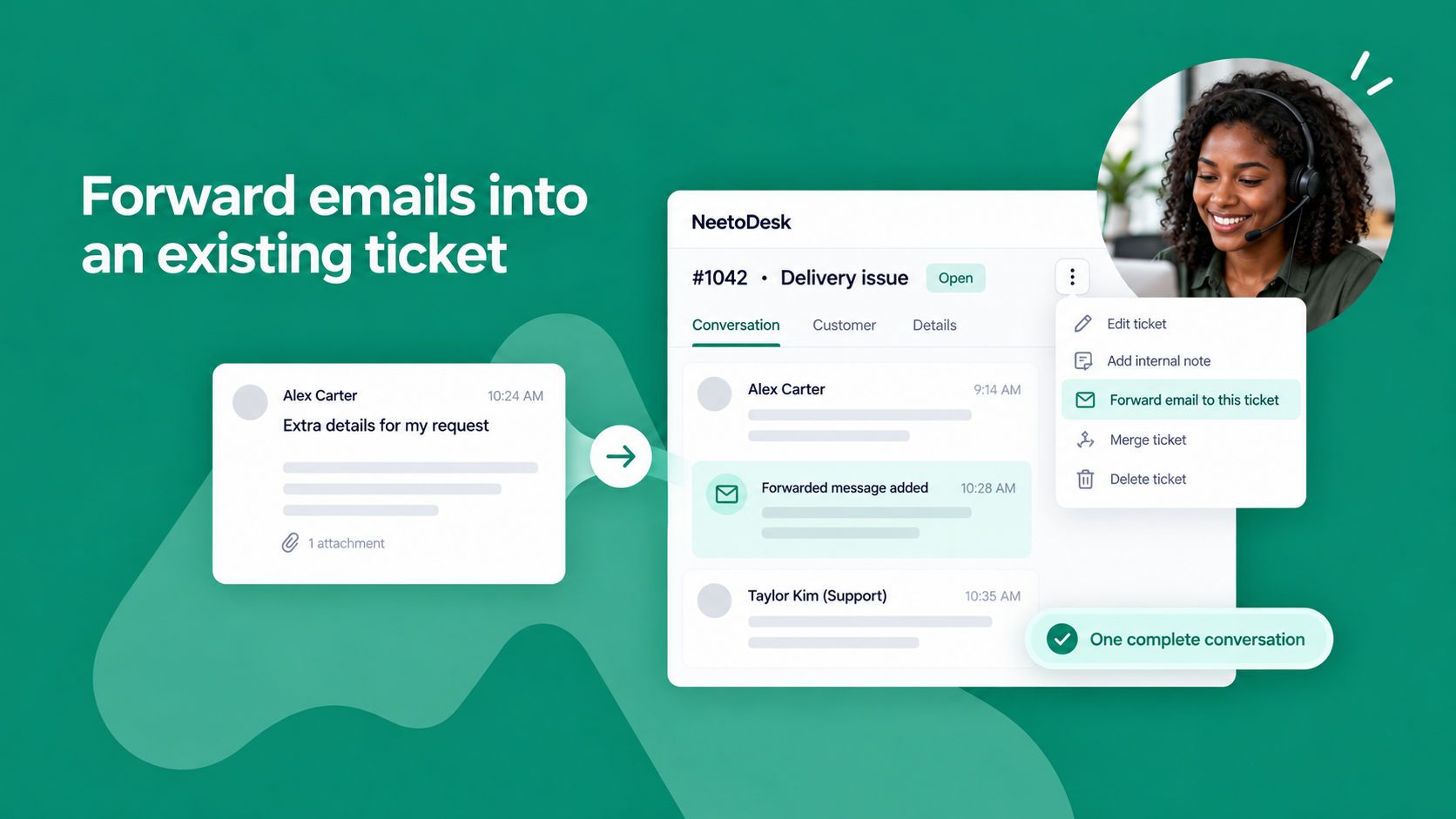
Sometimes a customer follows up in a separate email, or a colleague receives something related to a ticket. Forwarding it to your support address creates a duplicate ticket.

Every ticket now has its own unique email address. Open the ticket, choose Forward email to this ticket from the ticket menu, and copy the address. Any email you forward to that address is added to the ticket as a new message, so the whole conversation stays in one thread.


Read receipts

Kirti Gulati
image_pjLathcZn.png

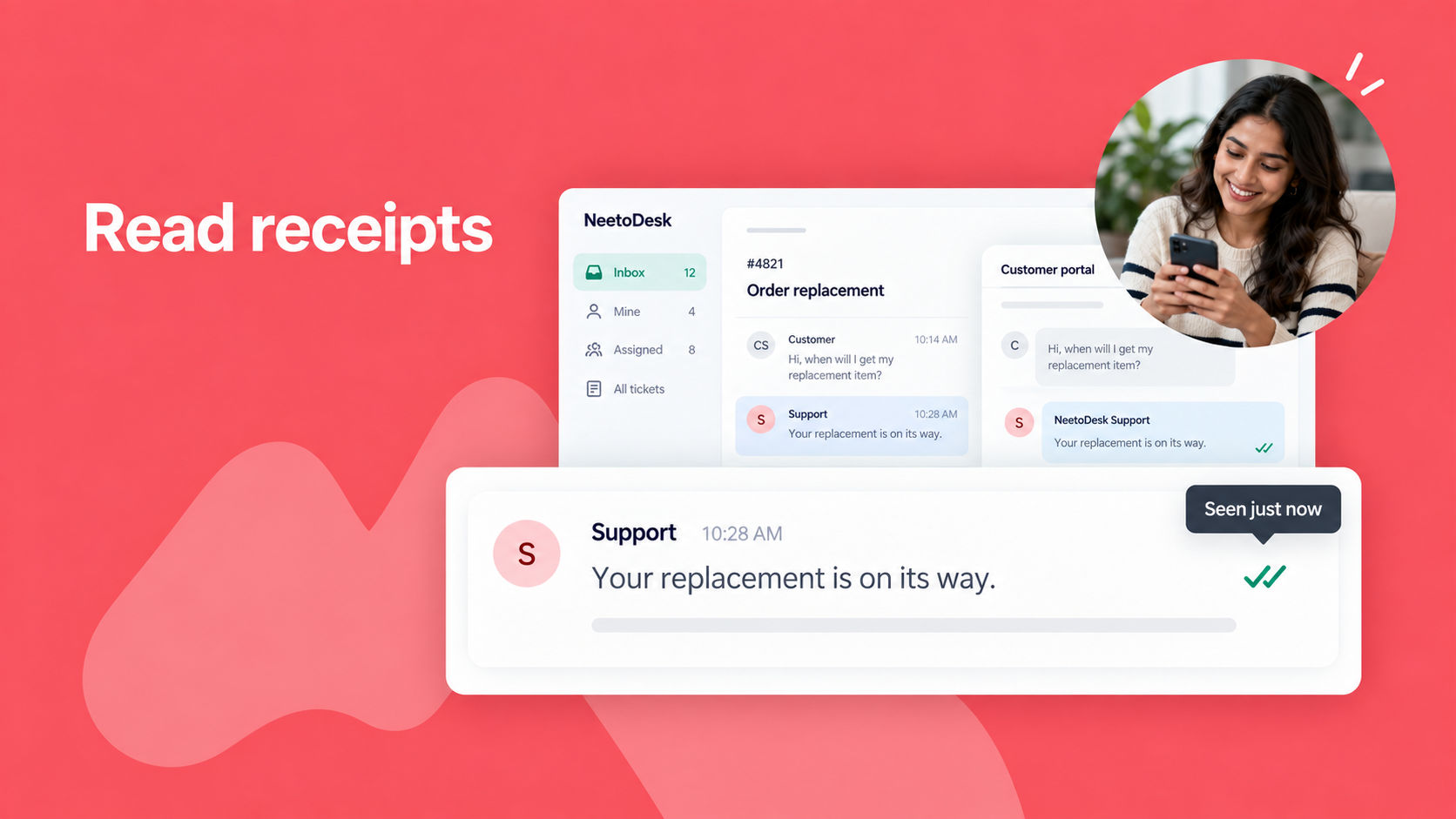
You can now see whether a customer has seen your reply, so you know when it's time to follow up.

When a customer opens your reply, either in the email or in the customer portal, a green double-check icon appears on it in the ticket. Hover over the icon to see when the reply was first seen.

To turn it on, go to Admin Panel > Tickets and enable Read receipts.

Read receipts are a helpful signal, but they are not always exact. Some email security tools open emails automatically, and some email apps block tracking.

To know more, read this help article.
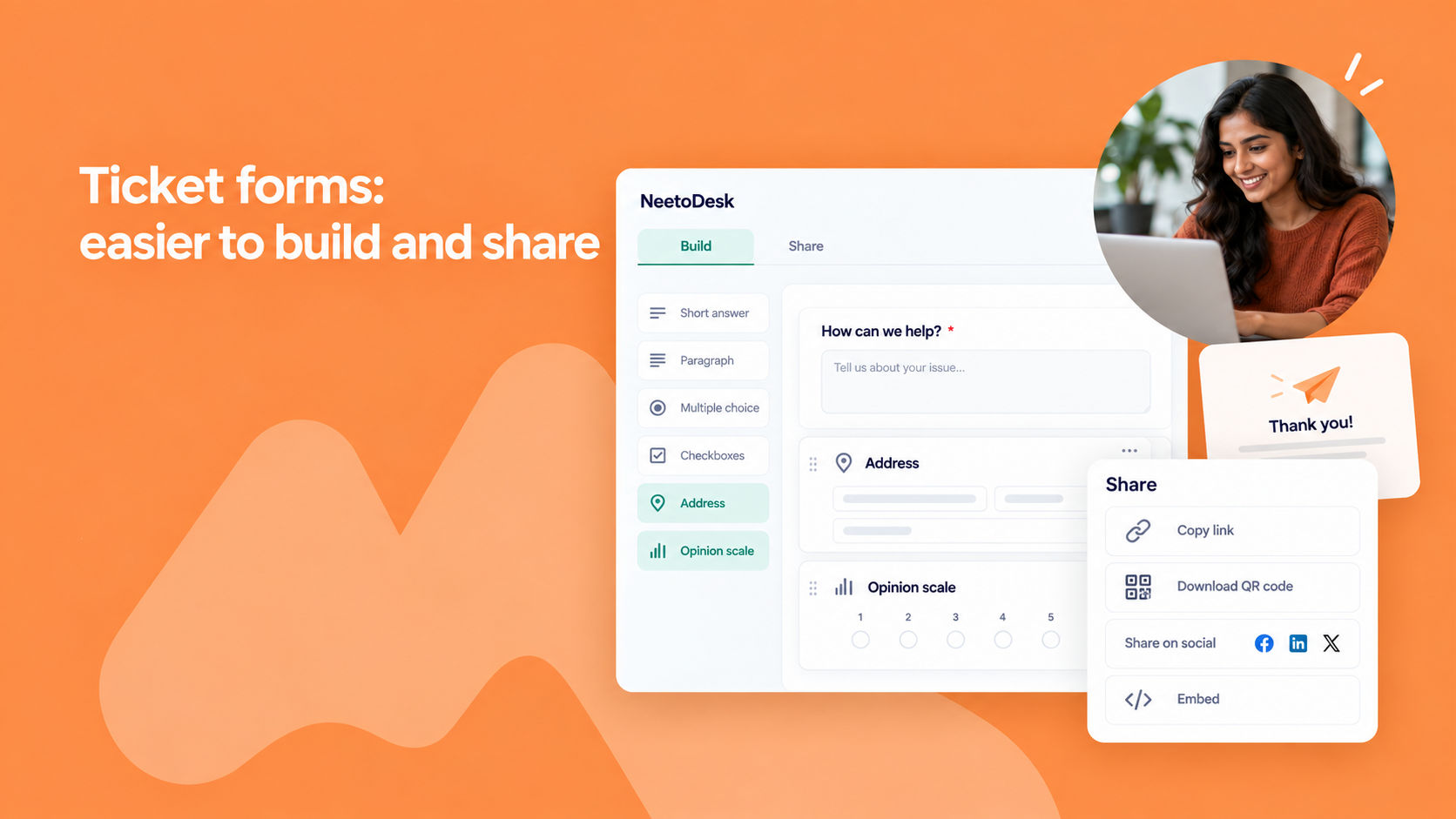

image_-SO9f4stA.png

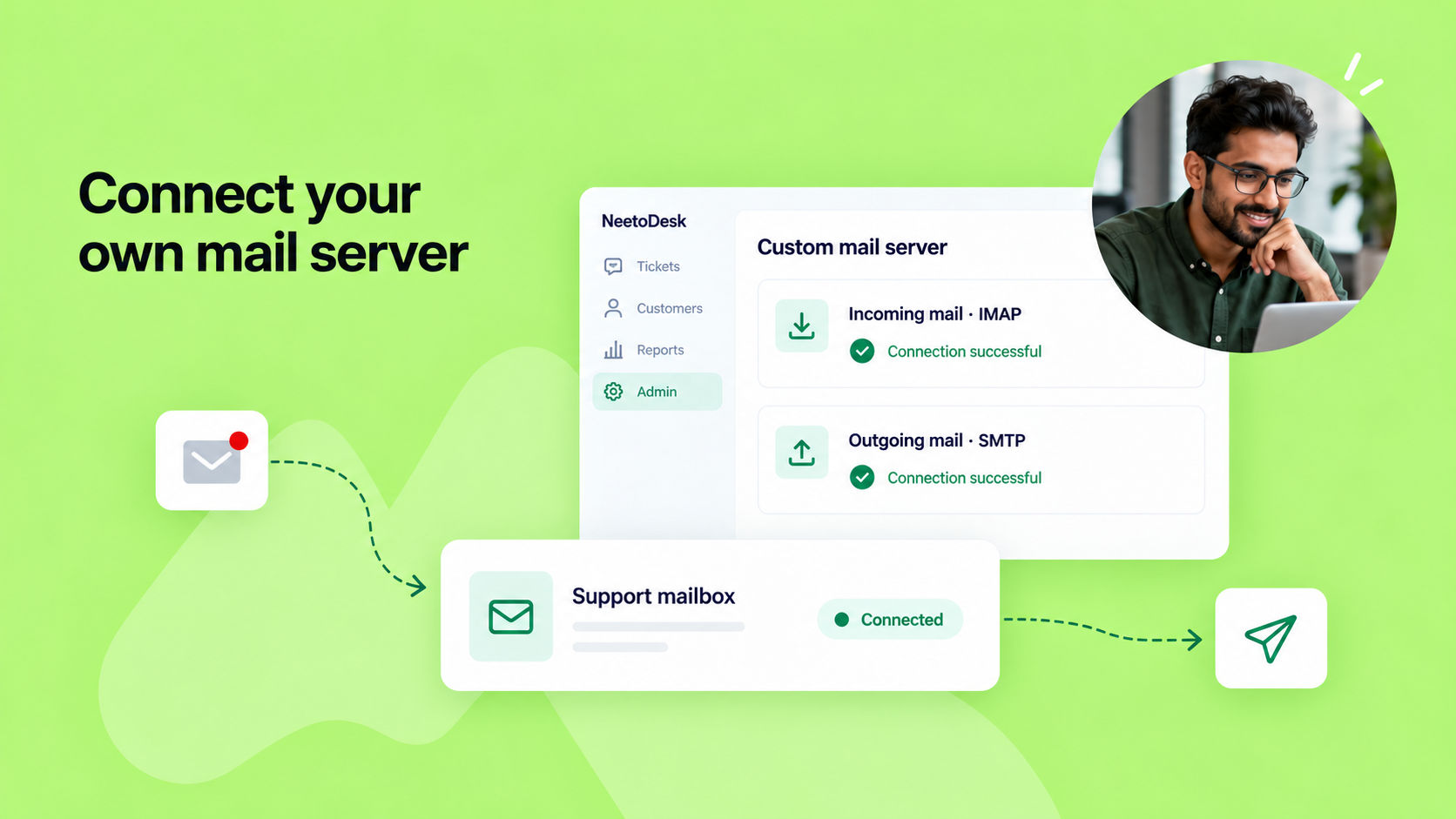
Until now, you could connect a mailbox only through Gmail, Microsoft Outlook or email forwarding. If you run your own mail server, you can now connect it to NeetoDesk directly.

Go to Admin Panel > Support Channels > Mailboxes, open a mailbox and choose Custom mail server. Enter the details of your incoming (IMAP) and outgoing (SMTP) servers. NeetoDesk tests both connections before saving. New emails to the mailbox become tickets, and your replies go out through your own SMTP server from your support address.

We also redesigned the Mailboxes page. Each mailbox now shows as a card with its connection status, and connecting a mailbox and changing its settings are now two separate steps.


image__JdTus6A5.png
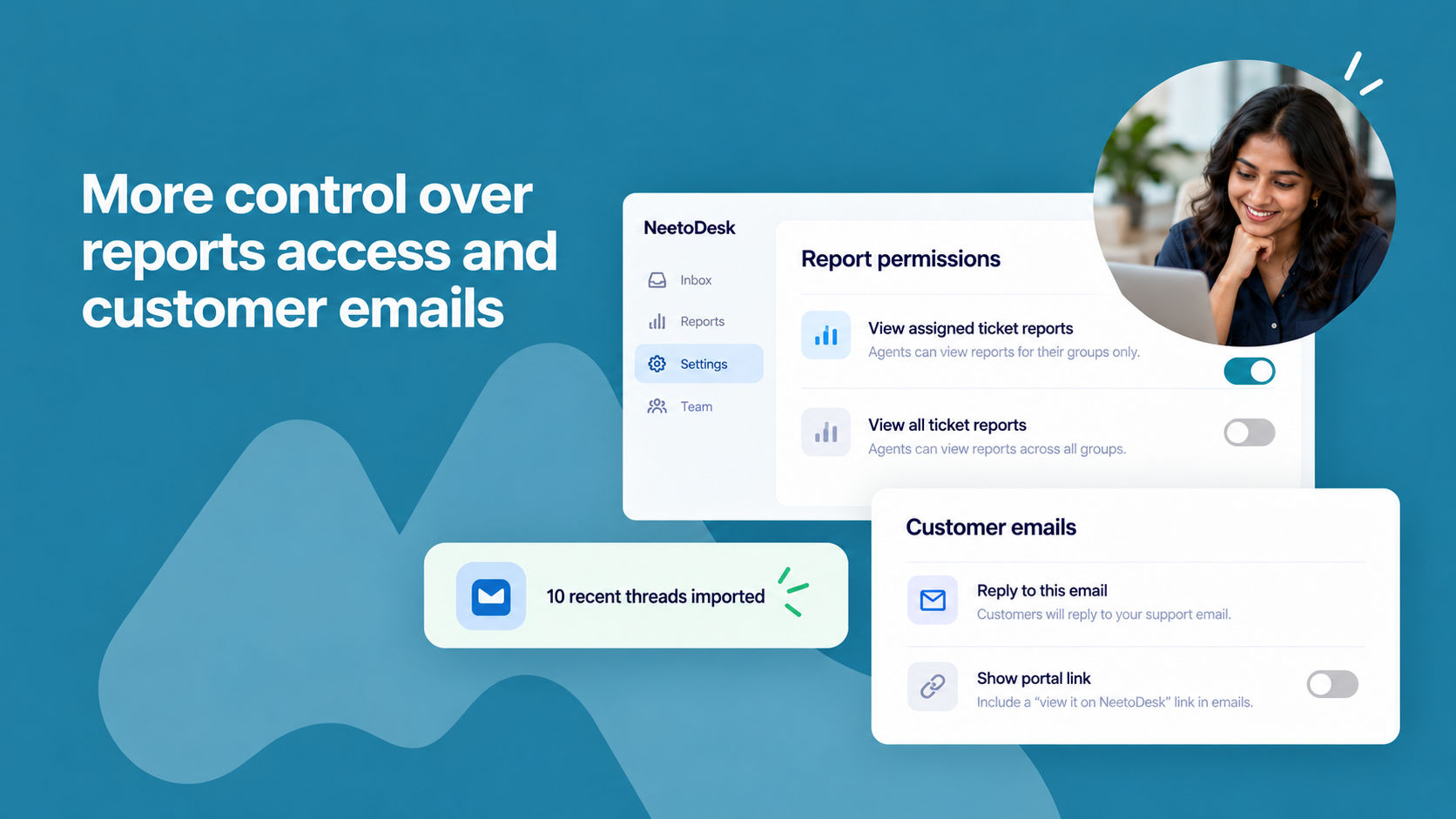
  • Report permissions: the single "View reports" permission is now two permissions, View assigned ticket reports and View all ticket reports. Agents with assigned-only access see report data just for the groups they belong to. Existing roles keep full access. To know more, read this help article.
  • Customer email CTA: choose whether reply emails include a "view it on NeetoDesk" link, or ask customers to reply by email only. This also controls the "View your ticket" button shown after a customer submits a ticket form. To know more, read this help article.
  • Recent emails imported when you connect a mailbox: when you connect Gmail or Outlook, your latest 10 email threads are imported as tickets, so you don't start with an empty inbox.

To know more, read this help article.

Move_tickets_across_workspaces_eHDVfCBXD.png

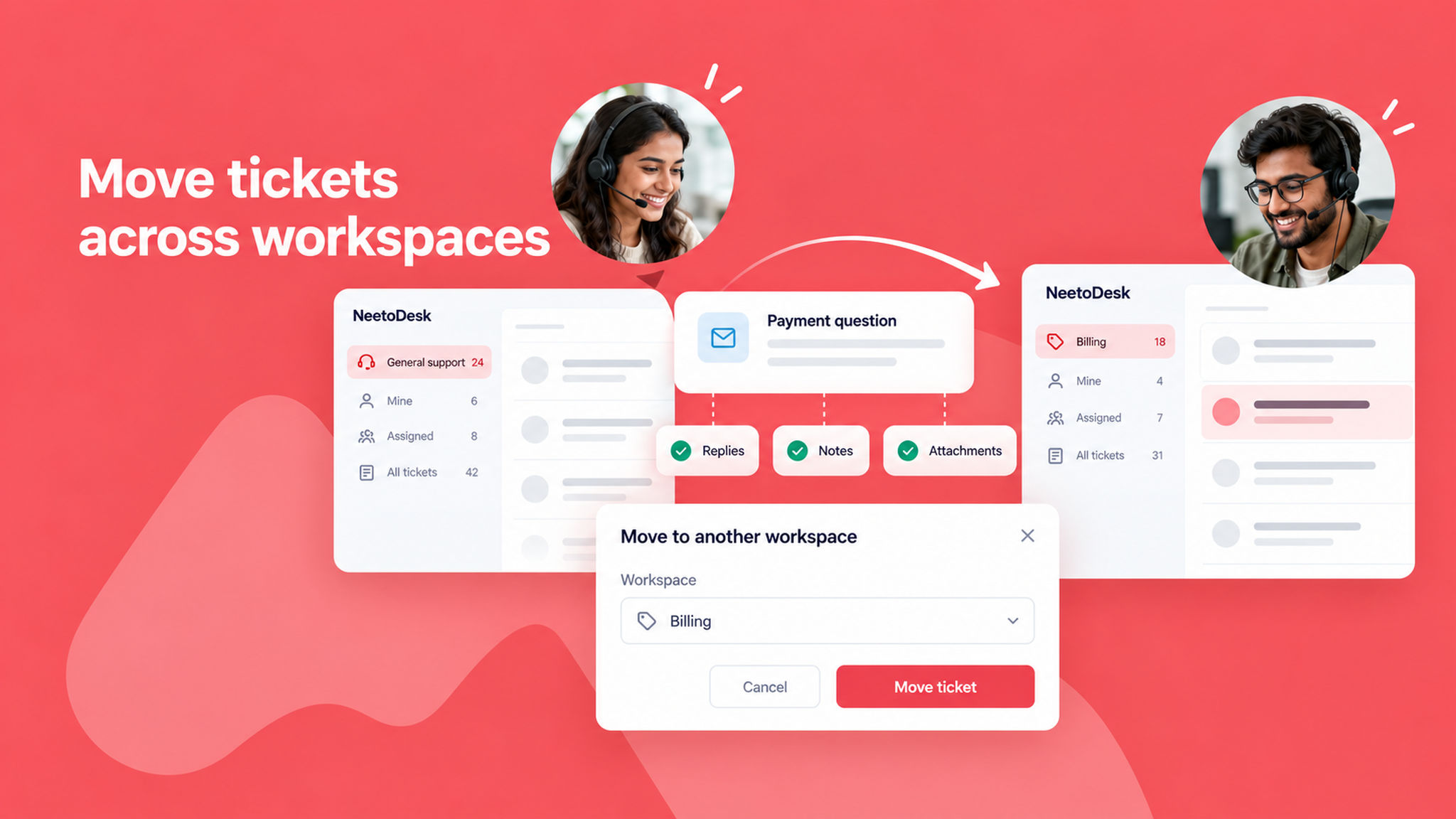
Sometimes a ticket reaches the wrong team. You can now move a ticket to another workspace in your organization, so the right team can pick it up with the full history.

To move a ticket, open it, click More in the ticket header and choose Move to another workspace.

The description, replies, notes and attachments always move with the ticket. The status, category, assignee, group, tags and custom fields carry over when the other workspace has a matching value.

To know more, read this help article.

image_nz6TxNq-v.png

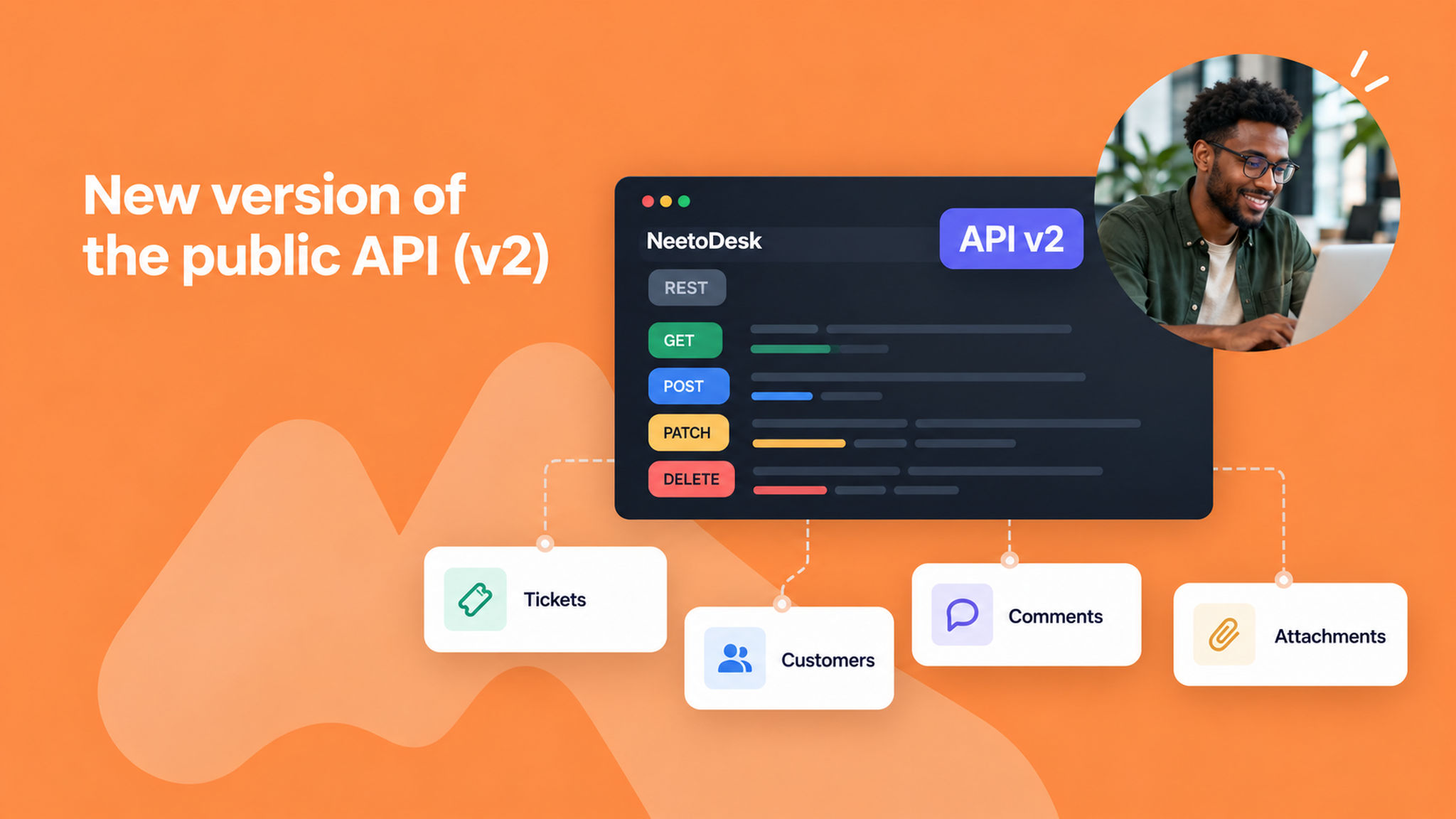
We've released version 2 of the NeetoDesk public API. It follows standard REST conventions, so its endpoints and responses are more predictable and easier to build on.

Since launch, v2 has gained endpoints for customers, file attachments on tickets and comments, and support for importing your ticket history from another helpdesk.

To know more, read this help article.